Posts

Showing posts with the label apple

Putting A Tape Over Your MacBook Camera Isn’t As Ideal As You Think, Says Apple

Image
There are many folks around the globe that believe in sticking a tape over their new laptop cameras, and you know who you are. The widely known purpose of doing so is to protect the privacy of the owner. However, Apple isn’t very happy with the act and advises that you must not do it with your MacBooks. The more sophisticated groups consider buying a camera cover as opposed to the idea of sticking a tape. These camera covers are easy to use and affordable. Yet, the million-dollar question is, are these camera covers good to use? The simple answer is, no! Apple says that while these camera covers may look better than a piece of tape, these can severely damage the display. What’s the way out? Well, you must trust the green indicator light. The indicator light indicates the activeness of the camera. This helps you figure out whether any spiteful individual managed to get unauthorized access to your device, enabled the camera or not. This technique is probably the only reliable way to stay...

Apple Releases iOS 14, iPadOS 14 Beta Versions, What’s New for You?

Image
iPhone users have spent years using the same interface without much complaining. “Not much complaining” because the features that users have been asking for were long ago, added to devices running on iOS’ foremost competitor, Android. But better late than never. Apple is finally coming out with features that Android users have been privy to for years now. And as a sneak-peek before the actual commercial launch this fall, Apple users can download the beta version of the new iOS for testing it out on their devices. But be aware, the beta version is only a test-run and could contain significant bugs that haven’t been rectified yet. This is the purpose of doling out the software to the public before its official commercial release. So that Apple enthusiasts, who are willing to take the risk, can identify the problems that the new software will pose. The official Apple website advises users who are going for the beta versions to back up their devices before joining the Apple Beta Software P...

The New Apple Watch Will Ensure That You Wash Your Hands Properly

Image
There is a lot of talk about Apple’s upcoming WatchOS 7 update. Before we highlight what the new software adds to the device, let’s take a look at the latest Apple Watch Series 5. It is the first Apple Watch with a display that is active 24/7. There is no need to touch the display in order to wake the watch so you can check the time, just glance at it as you would look at a normal watch and you’ll see it. So why not just use a regular watch instead? Well, here’s why so many have given in to the cult. It has a widely acclaimed exotic, super sleek design. The company’s rapidly growing health applications are influencing the way that users behave. The watch almost acts like a mini doctor that’s always by your side. This device will hold your hand (quite literally) and walk you through your anxiety attack. With Apple’s new fall detection feature, the watch could potentially save your life! Or add to your years at the very least. So, would you rather invest in an ambitious looking Rolex or ...

6 Best Cheaper Alternatives to Apple Airpods

Image
The Apple company has the best airpods, but they can burn a hole in the pocket. There are multiple wireless and in-expensive earbuds available in the market that provide more or less similar features to that of an Apple AirPods. If you are on a budget and you want an alternative to your Apple airpods then check the list below: Sony WF-1000XM3 This is an excellent alternative because it will provide you best noise cancellation features along with long-lasting battery life of 24 to 30 hours. Its wireless design is powered with HD noise cancellation processor QNe1. Due to the dual noise sensor technology, it provides crisp sound quality and zero disturbance from the outside environment. You don’t have to worry about the earphone slipping out of your ear due to its ergonomic tri-hold structure and high friction rubber surface. It is packed along with a magnetic charging case, USB-C charging cable, ⅛-inch headphone cable, airline adaptor, and warranty card for a year. These retail for $200....

5 Best MacBook Alternatives for 2020

Image
The  MacBook  has been the most attractive gadget for the loyal Apple customers. But with every new model, the previous model becomes a little less relevant, and the new device is rarely within an affordable range for all. The keyboards in the Apple devices have been awful for a long while now, the touch bar is selectively reactive, and the extreme reliance on USB-C port connections. The chargers are flimsy, and the battery life is not justified as compared to the big hole it burns in one’s pocket. And let us be frank,  Apple  has seen a downfall in advancements in technology and upgrades. The limited opportunity to customize the  MacBook  as per one’s convenience makes it harder to work with.  At the same time, other brands are constantly improving their product by leaps and bounds, with the intent to incorporate more and more in the same device for increased customer satisfaction. So it’s time we checked alternatives that we have in Windows that subs...

How to Play Apple Arcade Games on Mac

Image
Apple Arcade games were a topic of conversation last year started after the company released its own platform to play arcade games. Now when people are using it and enjoying it in your free time, they really get curious to know about it more. Users can play games on the iPhone, iPad, and Mac, and they are easy to organize on the devices. Games are the best way to enjoy the time when you can’t go outside, and these arcade games can support every user impressively. To organize the arcade games in Mac, there are not many things a user has to do, although it’s as simple as that.                               Source:  How to Play Apple Arcade Games on Mac Sign Up for the Apple Arcade To play Apple arcade games, you need to sign up for the subscription. Without applying for the subscription, you cannot play games on Mac. The procedure of subscription is easy with just $4.99 it can be started. After sta...

How to Fix Screen Recording Not Working or Saving on Mac

Mac owners can easily create a video recording of either their full screens or just a chosen segment of it. To record screens, they just have to use the Command – Shift – 5 keyboard shortcut. At times, users may face issues while trying to record screen recordings. If you are unable to save your screen recording or create them all together, then try the fixes mentioned in this blog. Ways to Solve Screen Recording Issue on Mac Solution 1: Setting the Microphone to None Capture your Mac screen by hitting the Shift + Cmd + 5 keys. Now, go to Options. Select Microsoft from the list. Click on the None option. Solution 2: Change the Setting for Automatically Stopping Screen Recording You might have set a time limit for capturing or recording video. Check whether there is any time limit for capturing or recording screens. If there is any such condition, then disable it. Reboot the Mac Click on the Apple logo. Select the Restart option. Or else, hold down the Power...

How to Discover iPhone Control Center in iOS 11

Image
Control Center is like the one shop destination for accessing plenty of features on your iPhone such as the Homekit controls, Apple TV remote, music playback, QR scanner and a lot more. You don’t even require to open an app for so many most of the controls. With the help of the control center, you can perform the right actions.  With the help of the Control Center, you can turn on the lights, take a picture and much more. You can personalize the Control Center to have quick access to the things you mostly use. Here is how to use it: For displaying the control center with most of the iPhone models, toggle up from the bottom of the screen. Swipe from the right corner of the screen to the center to access the control center. You will see the Control Center. Go to the Control Center and click on the button or click and drag the slider to access setting. So now that you have made the change toggle the top of the Control Center to hide the screen. You will see that specific ...

How to Deactivate Automatic Download on iOS Device

Image
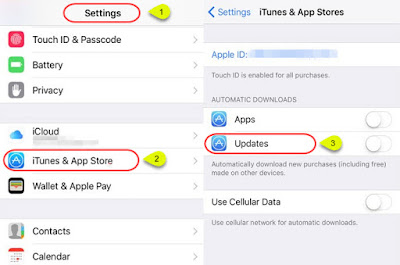
It would be surprising to see a file in your iOS device which gets automatically downloaded. An automatic download could be problematic because it uses up the data to a great extent. For some, automatic download is an excellent facility in the device because it can keep the content in sync. For example, if you have purchased music on your Apple device, it will be available on another device if you have activated automatic download. In the same way, some users don’t feel that auto download is useful for them. Since the auto download will keep adding data in your devices, it will use all the storage space. Another reason is the use of internet data resulting in its over-consumption. Hence turning off the automatic download is an option that comes to you to save data consumption and saves the storage in the device. Now, let’s see how to deactivate download automatic download on the iOS device 1.        Open the settings of your iOS device. 2. ...