Posts

How to Fix Windows Installer 1603 Error in Windows
Image
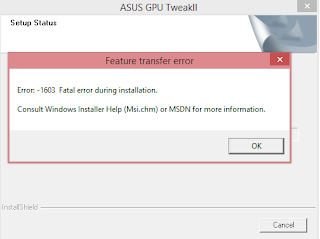
Windows Installer is responsible for installing and removing software, but if there are some problems, then a frustrating error appears on the screen. The error results in the incapability of installing the programs in the computer system. The 1603 fatal error require an immediate fix and hence follow this guide to get the list of solutions to solve the 1603 Fatal Error in Windows 10. Here’s how to Fix Windows Installer 1603 Error in Windows Open Program Install or Uninstall Troubleshooter Windows 10 has a program installed in it that is called Program Install or Uninstall Troubleshooter. If you don’t have it, then you can download it from the Microsoft website. Click the Download button and open the file. It might require installation and after installation, run the program. Press the Next button throughout the troubleshooting steps. Restart Windows Installer Service Try restarting and re-registering the Windows Installer service to fix the error 1603. Press the Wind...
How to Make Group FaceTime Call

Image
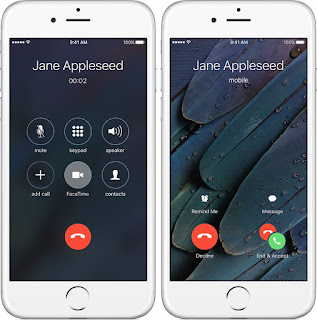
Apple’s FaceTime is an excellent video calling service of all the time as it gives the users an opportunity to make group video calls. The user can make the video calls (only to other iOS and macOS users) up to 32 persons from Contacts and merge of them together in one. How amazing it would be to talk to all of your friends in just one go! So next time when you are away from your friends, and you just want to give a head start to a conversation, just remember that your Apple devices such as the Mac computer have FaceTime feature. So don’t waste time and check out how to make the group video call using FaceTime on iOS devices and Mac devices. Here’s how to make a group FaceTime Call Making Group FaceTime Call on iOS 12 Open FaceTime on your iOS 12 device. Go to the right corner and tap the plus (+) button. Enter the name or number to which you want to make the video call. You can enter up to 30 additional numbers. Select Video or Audio to place the FaceTime call. ...

How to Personalize Alexa Skills

Image
Alexa, the digital personal assistant, is an example of new technology and it is something that almost everyone wants to have. Amazon is now allowing its customers to edit the Alexa Skill and responses. By visiting the Amazon Skill Blueprint, you can customize the Alexa Skills and compose every response on the replies of this amazing artificial intelligence assistant. With the help of templates in the Amazon Skill Blueprint, you can modify or personalize an answer into a joke, questions, etc. But doing that could get complicated, but with the right guidance, anyone can make the Alexa Skills more interesting. So let’s see the correct approach to personalize Alexa Skills. Here how to personalize Alexa Skill Visits blueprints.amazon.com and log into Amazon account. Select a type of skill from the categories – Learning & Knowledge, At Home, Fun & Games and Storyteller. Each category has skill templates which you must choose to create the skill, hence select a template...

How to Update Google Chrome

A lot of things can be done with the help of Google Chrome. It has totally dwarfed the competing internet browsers such as Safari, Microsoft Edge and Firefox. Its popularity is rising because of its ease of use. For the most part, updates are on auto-pilot, and you don’t need to take much pain regarding the updates. Chrome’s Update Schedule Google released a publicly available calendar with probable open dates for upcoming versions of Chrome. These updates are automatic, and when they are available, Chrome will apply them next time you open browser window. As there are so many users, it may take from a few days to a full week to get the latest version for everyone. It is also possible to manually trigger an update if you want to ensure that you are on the latest version. Google’s Chrome web browser was probably the first web browser to provide automatic updates. This was a revolutionary transformation. Prior to this feature, it used to be the user’s responsibility to update the...

How to Disable Windows 10 Automatic Updates

Image
Attempts of hacking are on the verge; It is smart to have your device fully strengthened up and upgraded to latest version. With the advent of Windows 10, Microsoft has deliberately chosen to take the extreme route by force updating that may result in unusual restarts and work losses. Many people may be wondering if it is possible to disable automatic Windows updates in Windows 10. An updated PC is less vulnerable to attacks. Windows automatic updates are usually a good thing, but sometimes it may get irritating. If your system runs Windows 10, depending on edition, it is still possible to regain some control over it and stop automatic updates with the help of using either of the policy, the Local Group Policy or the metered network trick. Blocking automatic updates with the help of Local Group Policy If you run Windows 10 Pro, then you may use Local Group Policy editor for changing the settings. It will help in preventing your device from downloading and installing automatic u...

Tips to increase Slow files copy speed in Windows PC

Image
If you are facing slow copy and move speed problem, then this article is going to help you make copying speed faster on your Windows PC. Moving files by copying and pasting them from one to another place are probably something we use a lot. Most of the copying takes place from external devices or to external devices. Increase Slow files copy speed in Windows 10/8/7 In this post, some solutions are available to fix this slow data copy speed since we’ve tried to resolve this issue by providing guidelines for increasing copy-paste speed in Windows 10/8/7. 5 solutions to increase Slow files copy speed in Windows device Solution #1 Change the USB Port Modern computers have a lot of USB ports. So, if the USB drive you use supports USB 3.0/3.1, you need to make sure to plug it inside a USB 3.0/3.1 port. A USB 3 port is typically blue; also, you can go to your computer’s documentation to locate it. Changing ports would improve copy speeds significantly. Thus, accord...

How to Upgrade to iOS 12.1 Beta 3 on your iPhone or iPad

Image
If you are the one who always wants to be the first to try out all the upcoming features, then here is the new version of iOS: iOS  12.1 beta 3. As iOS 12.1 is still in beta testing, this beta testing will continue for the addition of new features and refinements. iOS has reintroduced Group FaceTime, fixed bugs, added emojis, eSIM support, and includes a number of features. If you want to upgrade your old iOS version to the new iOS version 12.1 beta 3, check out all its new features earlier than everyone else. Both developers and non-developer can enjoy this. But, it is relatively easy to try out the latest iOS version for the developers who have registered developer account. But, if you don’t have a developer account, then you can try the public beta. Developers can download the new iOS version or add the beta profile into their iOS device from “developer.apple.com.” And, non-developer can head to “beta.apple.com” to download the new iOS version public beta test. Bef...